 AutoGem
How to bulk generate images with Gemini
Set up your first Gemini batch, scale it to 100 prompts, and recover when a run stops partway.
This guide walks through AutoGem on gemini.google.com, from folder permissions to a finished run. For examples of what it can do, see AutoGem for Gemini.
Start with setup, jump to preparing a 100-prompt batch, or read how to review results and handle interruptions.
Set up a Gemini image batch
Install, sign in, add your prompts, and run a short test.
-
Install AutoGem in Chrome
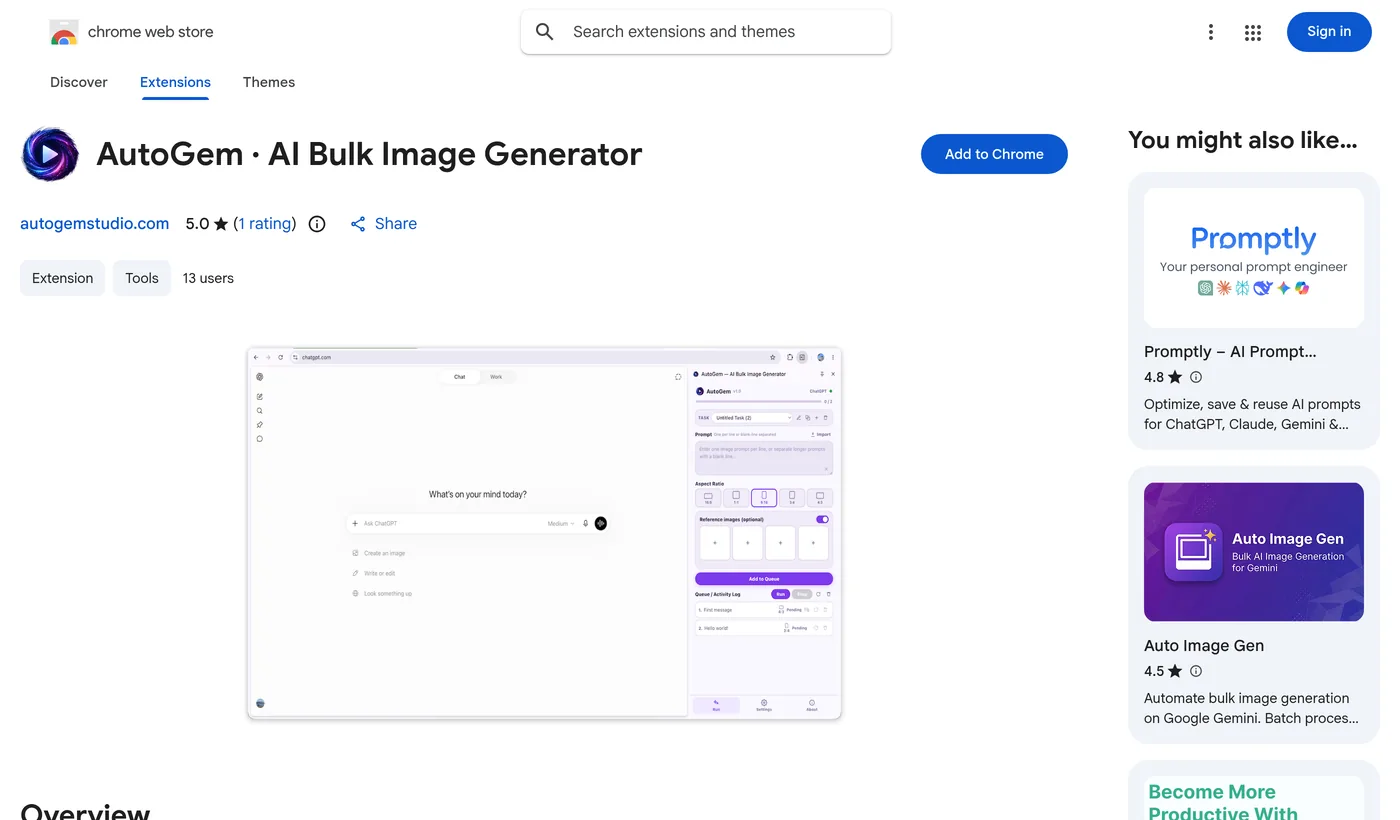
Install from the Chrome Web Store, sign in to AutoGem, and open the side panel. Choose a download folder during setup or in Settings, then allow Chrome to write to it.
-
Open Gemini and sign in
Open gemini.google.com and sign in with an account that can generate images. Leave the tab open. AutoGem works through it, so you don’t need an API key.

-
Build your bulk queue
Paste one prompt per line, or separate longer prompts with a blank line. Set the aspect ratio and any reference images, then click Add to Queue. Check the rows before you start.

-
Run a sample and check the downloads
Start with a few rows. AutoGem sends each one in order and saves the images. Keep the side panel open so files reach your folder, and check both the queue and the folder.


Get your prompts ready
Using Nano Banana? It’s Google’s name for its Gemini image models. Pick an image option your Gemini account offers and test one row before queuing more. The Gemini and Nano Banana overview explains how it works with AutoGem.
For a quick first run, download our three sample Gemini prompts, paste them in, and check the results before you add more.
Set the aspect ratio and attach references before you add the prompts. The model treats these as guidance, so check the size and subject of each image.
Check results and recover from interruptions
Check the images, then the files
Match the done and failed rows against your prompt list. Look for missing subjects, inconsistent details, or bad framing. AutoGem keeps each generated image even if saving to your folder fails. If a file is missing, find it in the extension, read any export warning, and restore folder access in Settings.
Continue a paused run with Resume
Pause lets the current image finish and holds your place. Resume picks up from there. Stop also lets the current image finish, but the next run after Stop, or after a finished run, starts from the first item again, including completed rows.
Retry only what failed
Read the error and look at the Gemini conversation before retrying. A rejected prompt fails on its own while the other rows keep going; a frozen Gemini page pauses the queue. Put the prompts you want to retry in a short new queue so you don’t rerun the whole list.
Collect the finished run
When a run finishes, Download ZIP collects all its images. Keep the prompt list with the files, and look over every image before you use it.
Related
See AutoGem for Gemini for product examples, or compare bulk image generation extensions.
Start your next Gemini batch on autopilot
Install AutoGem, pick a folder, and run a few Gemini prompts to see how it works.
 Download for
Google Chrome
Download for
Google Chrome