 AutoGem
Generate Qwen images in bulk
Stop pasting prompts and saving images one at a time. AutoGem runs your whole list on chat.qwen.ai and collects every image it makes.
AutoGem is free. Your Qwen account and its image generation limits still apply. See details.
A Qwen image batch with completed results
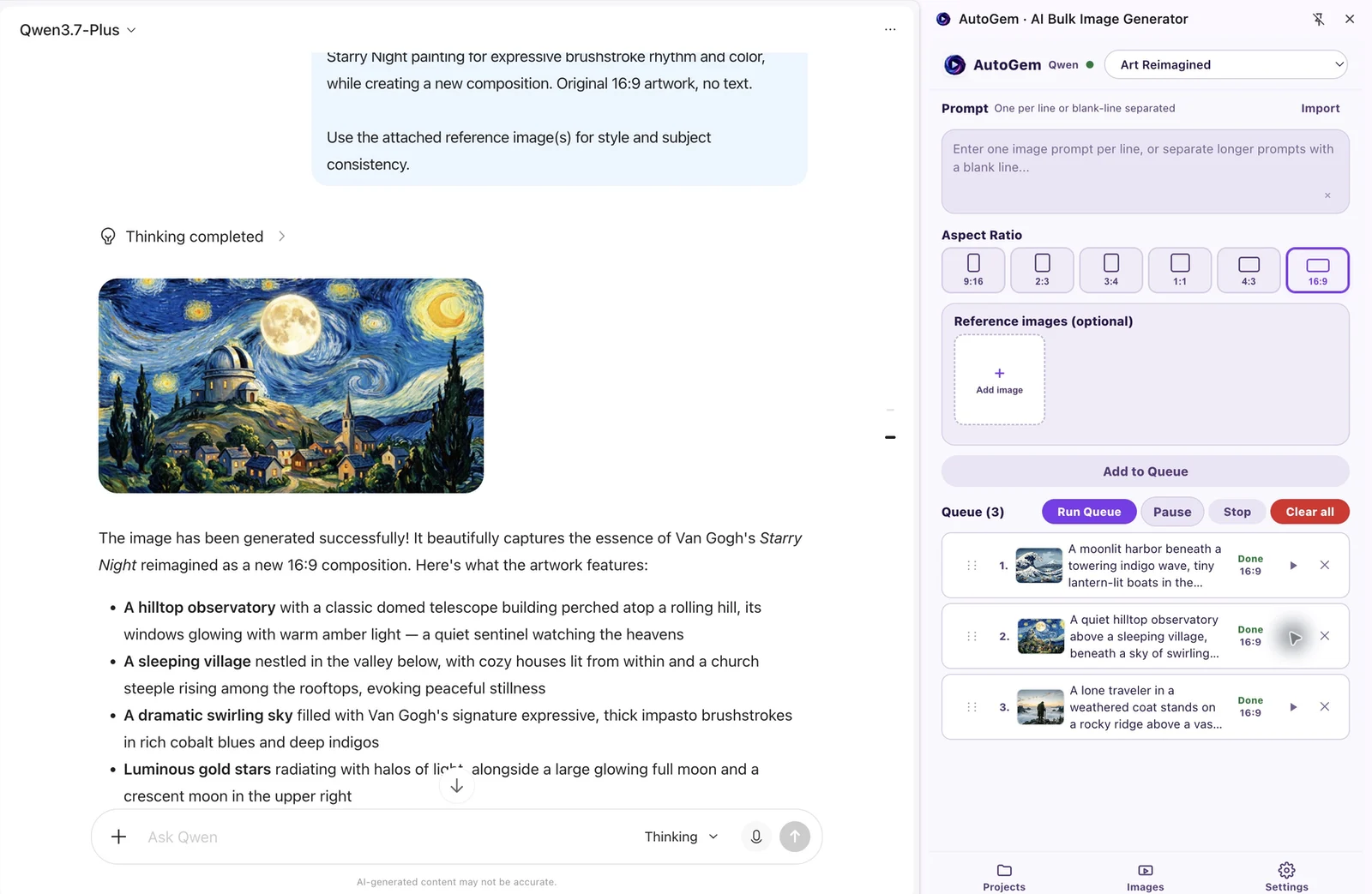
Set up a Qwen image queue in Chrome
Sign in to Qwen, add your prompts, and pick where the images go.
-
Install AutoGem and choose a folder
Add AutoGem from the Chrome Web Store, sign in to the extension, and choose a download folder. Allow folder access when Chrome asks.
-
Open Qwen with image access
Sign in at chat.qwen.ai with an account that can generate images. Leave the tab open; AutoGem works through it.
-
Add prompts, framing, and references
Paste one prompt per line. Pick an aspect ratio and any reference images, then add the prompts to the queue. Try a few rows before a big run.
-
Run the queue and check the results
AutoGem sends the prompts one at a time. Keep the side panel open so images save to your folder, then check for failed rows or export warnings.
Try three seasons of one scene
Same mountain library, three seasons. These prompts show how Qwen handles one setting as it changes. Paste each one as its own queue row and pick one aspect ratio before adding them.
Copy the prompts or download the list. Results vary by model and account.
If a detail matters, write it into every prompt or attach a reference image you have the rights to. Then compare the building and composition across all three results.
Qwen batch questions
Do I need a Qwen API key?
No. AutoGem works through chat.qwen.ai in Chrome. You just need a Qwen account that can generate images.
Which Qwen model does AutoGem use?
Whichever one your Qwen session is set to. AutoGem drives the Qwen website, not an API, so check the model and image options there and test one prompt before running the queue.
Should I use Qwen for client-facing image work?
For polished client work, we recommend ChatGPT or Gemini, tested on a small sample first. Qwen works well for exploring ideas and prompt variations. Check every image before you deliver it.
Can I set an aspect ratio or attach references?
Yes. Set both when you prepare the queue. The model doesn’t always follow them exactly, so check the framing, size, and subject in the results.
Where do my Qwen images go?
AutoGem keeps each image in the extension and saves it to your download folder while the side panel is open. Finished runs also have a Download ZIP button.
What should I do if Qwen returns text instead of an image?
Look at the Qwen chat and the queue message. Make sure image generation is available, and start the prompt with a clear request like “Create an image of”. Test the revised prompt on its own before another batch, since a new full run also reruns finished items.
Choose a provider for your next batch
Run your first Qwen batch
Install AutoGem, sign in to Qwen, and try the three prompts above.
 Download for
Google Chrome
Download for
Google Chrome