 AutoGem
How to make lifestyle product photos in bulk with AI
You have a plain photo of each product. Your listings, ads, and social posts need that product on a kitchen counter, a cafe table, a gift spread. This guide shows you how to get those shots from ChatGPT or Gemini, then make dozens at once instead of one chat message at a time.
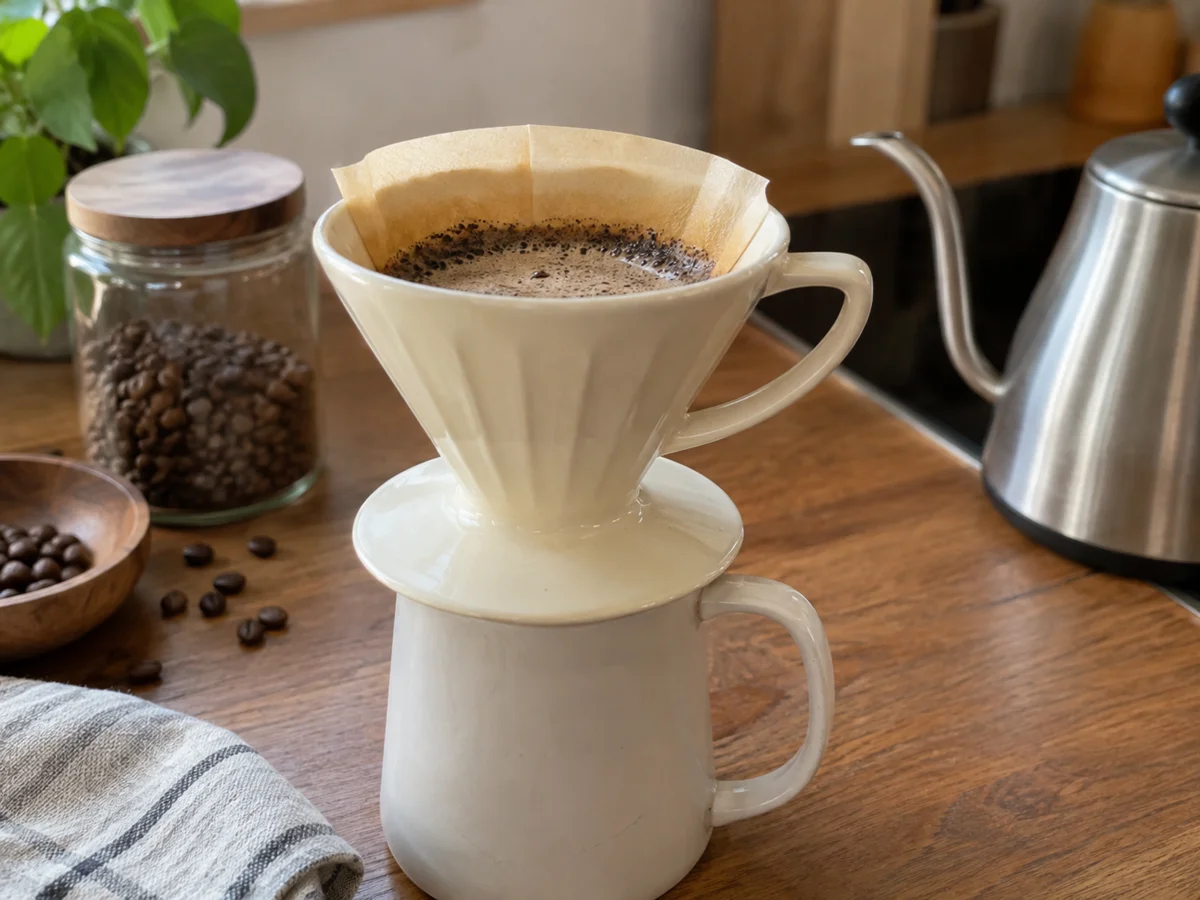
What you will end up with
- 12photos per product
- 4scenes
- 3formats
Four scenes, each made in three formats. Each format has a job:
| Format | Where it goes | How to frame it |
|---|---|---|
| 1:1 square | Amazon, Etsy, and Shopify image galleries; Instagram grid | Product centered and close |
| 4:5 portrait | Instagram and Facebook feed posts and ads | Product plus more of the room around it |
| 16:9 landscape | Store homepage banners, email headers | Product off to one side, empty space for your headline |
Need Stories or Reels? Add a 9:16 batch the same way.
Before you start
- A photo of your product. A phone photo is fine. Step 1 covers what makes a good one.
- A ChatGPT or Gemini account that can make images. Free plans work for a test, but limit how many images you get per day.
- AutoGem, a free Chrome extension, for the bulk part in step 6.
1Take a reference photo the AI can work from
You will attach this photo to every prompt. The AI copies what it sees, so a clean photo does more for accuracy than a clever prompt.
- Plain background. White or light grey, nothing else in the shot.
- Soft, even light. Next to a window works. Avoid direct sun and harsh shadows.
- The whole product in frame, from the angle customers know it by.
- No extras. Leave out hands, props, and packaging unless they come in the box.
Already have white-background photos for your listings? Use those. Our sample reference also includes a mug, filter, kettle, and coffee beans. Those are props, not parts of the dripper.
2Describe your product once, then reuse it
Ask for the same product in four scenes and you can get four slightly different products. A short, exact description pasted into every prompt keeps it consistent. Spend your words on what the AI tends to get wrong: shape, color, material, handles or lids, and logos.
- Template
- [color] [material] [product] with [2 to 4 defining features], and [logo details or “no printed logo”]. Preserve its shape, proportions, and [finish].
- Our example
- glossy ivory ceramic pour-over coffee dripper with a conical body, vertical ribs, one loop handle, a round base, and no printed logo. Preserve its shape, proportions, and glaze.
3Pick three or four scenes your buyers live in
A lifestyle photo works when the shopper can picture the product in their own home or day. Choose where it actually gets used, not just what looks pretty.
| Product type | Scene ideas |
|---|---|
| Kitchen and home | Kitchen counter, dining table, open shelf, cafe table |
| Beauty and skincare | Bathroom shelf, vanity tray, marble counter, folded towel by the bath |
| Outdoor and travel | Campsite table, picnic blanket, car trunk, hotel desk |
| Desk and tech | Home office desk, bag flat lay, cafe work table |
| Gifts and seasonal | Gift flat lay with wrapping, holiday table, birthday setup |
For our coffee dripper, we picked a kitchen counter, a cafe table, a campsite, and a gift flat lay.
4Turn each scene into a prompt
Every prompt follows the same pattern. Only the scene and lighting change.
- Pattern
- Generate a product lifestyle image using the attached reference of [your product description]. Place it [scene], [lighting], realistic product photography, no people, no added text or logos.
The ending matters. “No added text or logos” stops the AI from inventing branding on your product. “No people” keeps out hands and faces, which is where AI images most often look off.
Here are the four prompts for our dripper. Swap in your own description and scenes.
- Generate a product lifestyle image using the attached reference of a glossy ivory ceramic pour-over coffee dripper with a conical body, vertical ribs, one loop handle, a round base, and no printed logo. Preserve its shape, proportions, and glaze. Place it as the clear subject on a pale oak kitchen counter beside a softly blurred window, gentle morning light, realistic product photography, no people, no added text or logos.
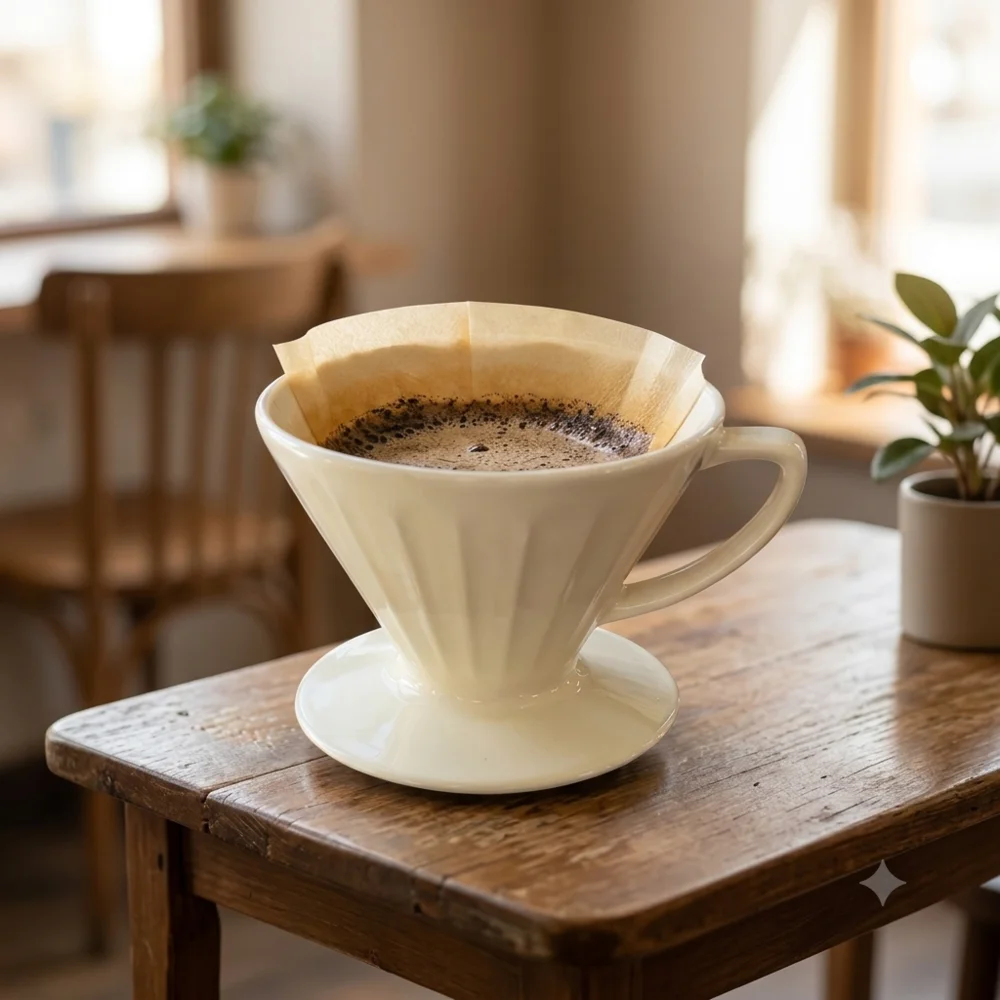
- Generate a product lifestyle image using the attached reference of a glossy ivory ceramic pour-over coffee dripper with a conical body, vertical ribs, one loop handle, a round base, and no printed logo. Preserve its shape, proportions, and glaze. Place it as the clear subject on a small cafe table with a softly blurred interior, gentle window light, realistic product photography, no people, no added text or logos.
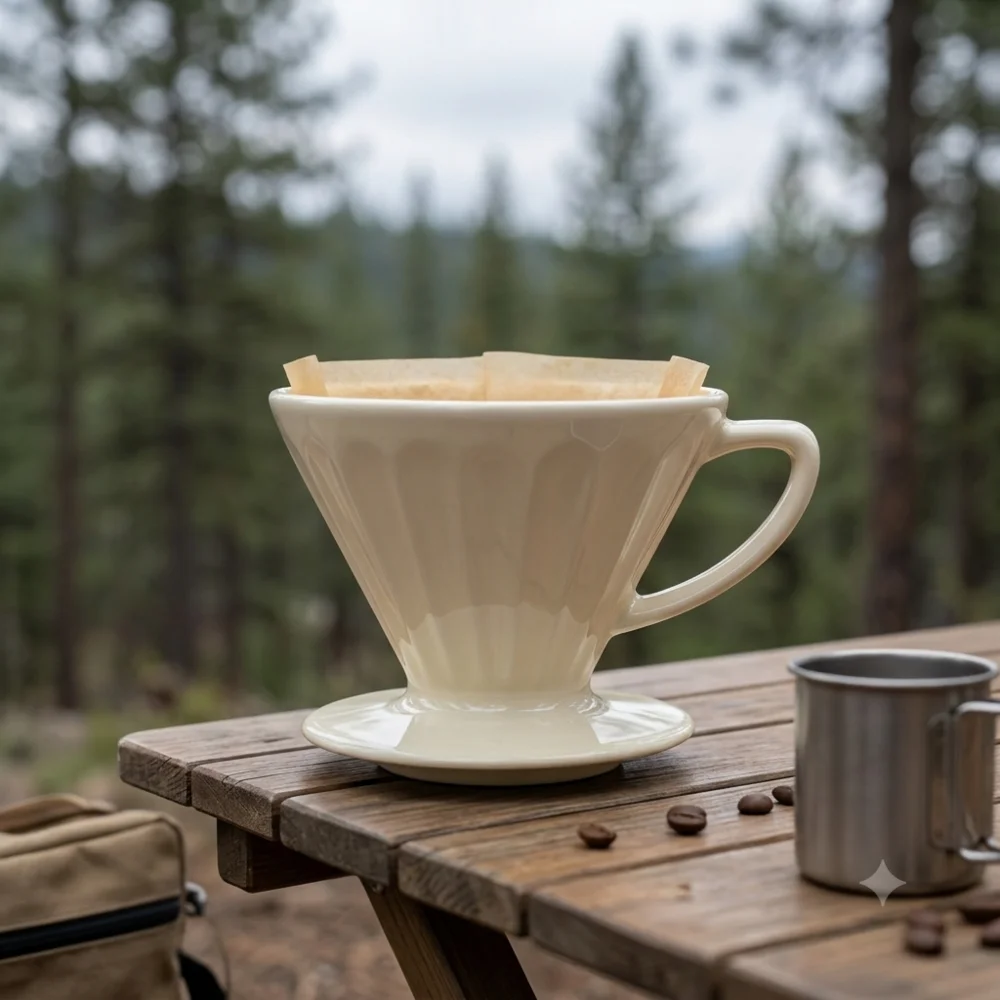
- Generate a product lifestyle image using the attached reference of a glossy ivory ceramic pour-over coffee dripper with a conical body, vertical ribs, one loop handle, a round base, and no printed logo. Preserve its shape, proportions, and glaze. Place it as the clear subject on a stable wooden camping table with distant trees out of focus, soft overcast light, realistic product photography, no people, no added text or logos.
- Generate a product lifestyle image using the attached reference of a glossy ivory ceramic pour-over coffee dripper with a conical body, vertical ribs, one loop handle, a round base, and no printed logo. Preserve its shape, proportions, and glaze. Show it from above on plain linen beside an unbranded gift box, keep the entire product visible, soft diffuse light, realistic product photography, no people, no added text or logos.
Highlighted words change from prompt to prompt. The rest stays the same.
This free set is also in the prompt library. Export it to AutoGem, or download the TXT file to use it yourself.
5Test one prompt by hand
Before you run anything in bulk, open ChatGPT or Gemini, attach your product photo, and paste in the first prompt. Look closely at the result. If the handle moved, the color is off, or a logo appeared, tighten your description and try again.
Fixing one prompt takes a minute. Finding the same mistake across a whole catalog takes an afternoon.
6Make the whole set with AutoGem
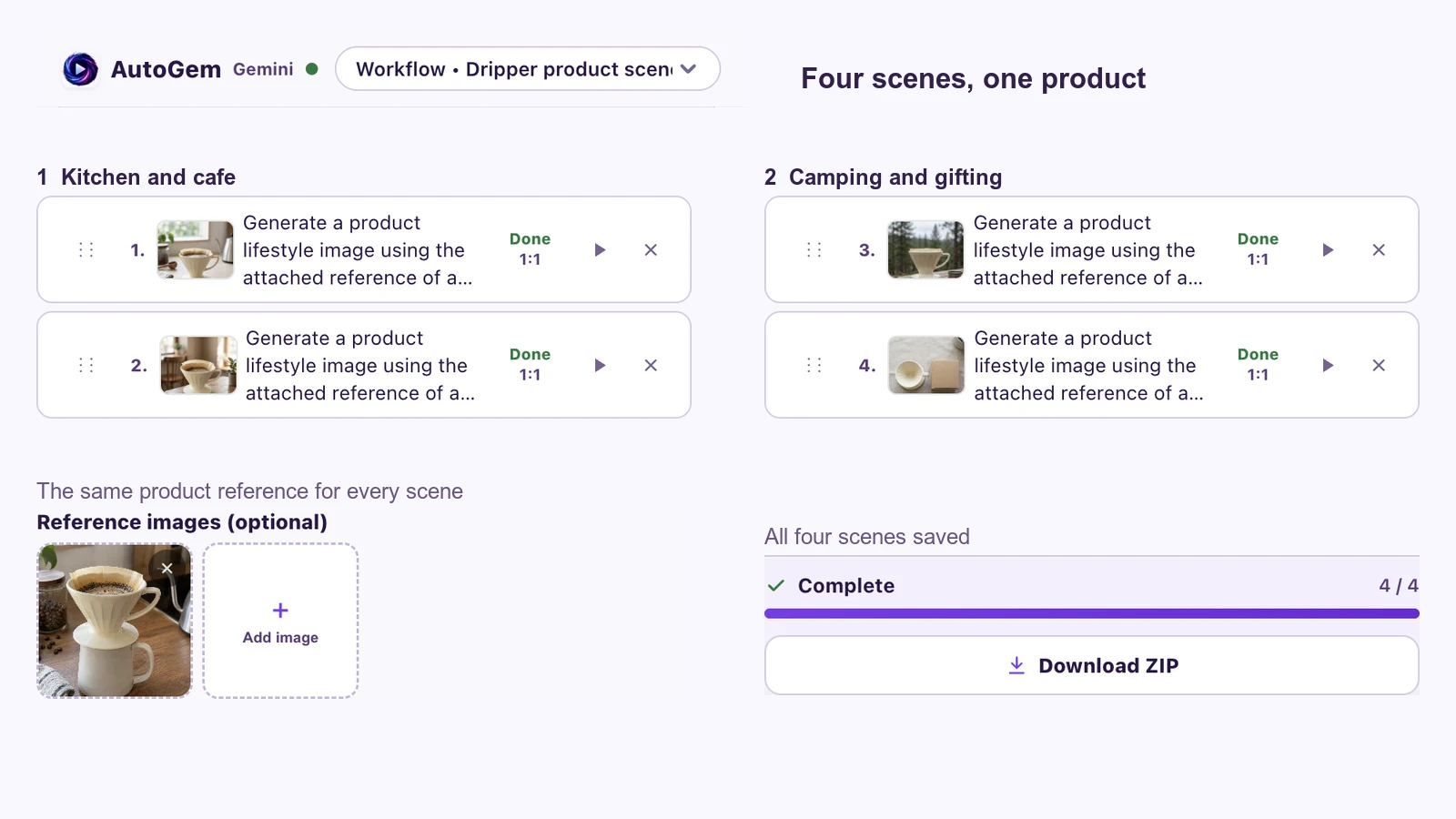
By hand, every image means pasting a prompt, waiting, downloading, and renaming. That is 12 rounds per product, and 240 for a 20-product catalog. AutoGem is a free Chrome extension that does the loop for you, inside your own ChatGPT or Gemini tab.
- Install AutoGem and choose a download folder.
- Open ChatGPT or Gemini and sign in.
- In the AutoGem side panel, paste your four prompts, attach your product photo, set the aspect ratio to 1:1, and click Add to Queue.
- Start the queue. Each image saves to your folder as it finishes. Keep the side panel open while it runs.
- Do the same for 4:5 and 16:9. For the landscape batch, add “product on the left third, empty space on the right” to each prompt so there is room for text.
- Move on to the next product with its own photo and description.
First time using AutoGem? The ChatGPT setup guide and Gemini setup guide cover installation and folder permissions in more detail.
7Check every image before it goes live
An AI image can look great and still be wrong about your product. If a customer opens the box and it does not match the photo, you get a return and maybe a bad review. Check each image against your real product photo, not against the previous AI image, since small changes add up.
- Shape: handles, lids, ribs, and base match. No extra or missing parts.
- Color and finish: the same shade, and matte stays matte.
- Text and logos: no invented branding or garbled lettering.
- Props: nothing in the scene looks like it comes in the box when it does not.
- Crop: looks right at the size it will be shown, with room for text on banners.
If one scene keeps getting the product wrong, drop it and make more of the scenes that work. You do not need all 12.

Common questions
Can I use AI product photos on Amazon, Etsy, or Shopify?
Yes, for secondary listing images, ads, and social posts. Amazon requires the main image to be a photo of the actual product on a pure white background, so keep a real photo in that slot. On every platform, the image has to show the product as it really is.
Will the AI change how my product looks?
Sometimes. Handles move, colors shift, and logos appear out of nowhere. That is why you repeat the exact product description in every prompt, test one prompt before the batch, and check every image against your real photo.
ChatGPT or Gemini: which is better for product photos?
Both can work from a reference photo. Run your first prompt in each and keep whichever gets your product right more often. AutoGem runs batches on either one.
How many images can I make?
AutoGem is free. Your ChatGPT or Gemini plan decides how many images you can make each day. Free plans have tight daily limits, so a paid plan helps if you are doing a whole catalog.
Do I need an API key or any design software?
No. AutoGem works through the ChatGPT or Gemini website you already use, and the images come out ready to upload. You may still want to crop or resize for a specific placement.
More guides
Make your first set of product photos
Install AutoGem, attach your product photo, and paste in the four prompts. The images save to your folder as they finish.
 Download for
Google Chrome
Download for
Google Chrome