 AutoGem
How to make bulk AI images for a YouTube video from your script
Narrating a story, history, or explainer video over still images? A 10-minute script can need 75 pictures or more. This guide shows you how to turn your script into a shot list, keep every image in the same style, and generate the whole set in ChatGPT or Gemini without making them one at a time.
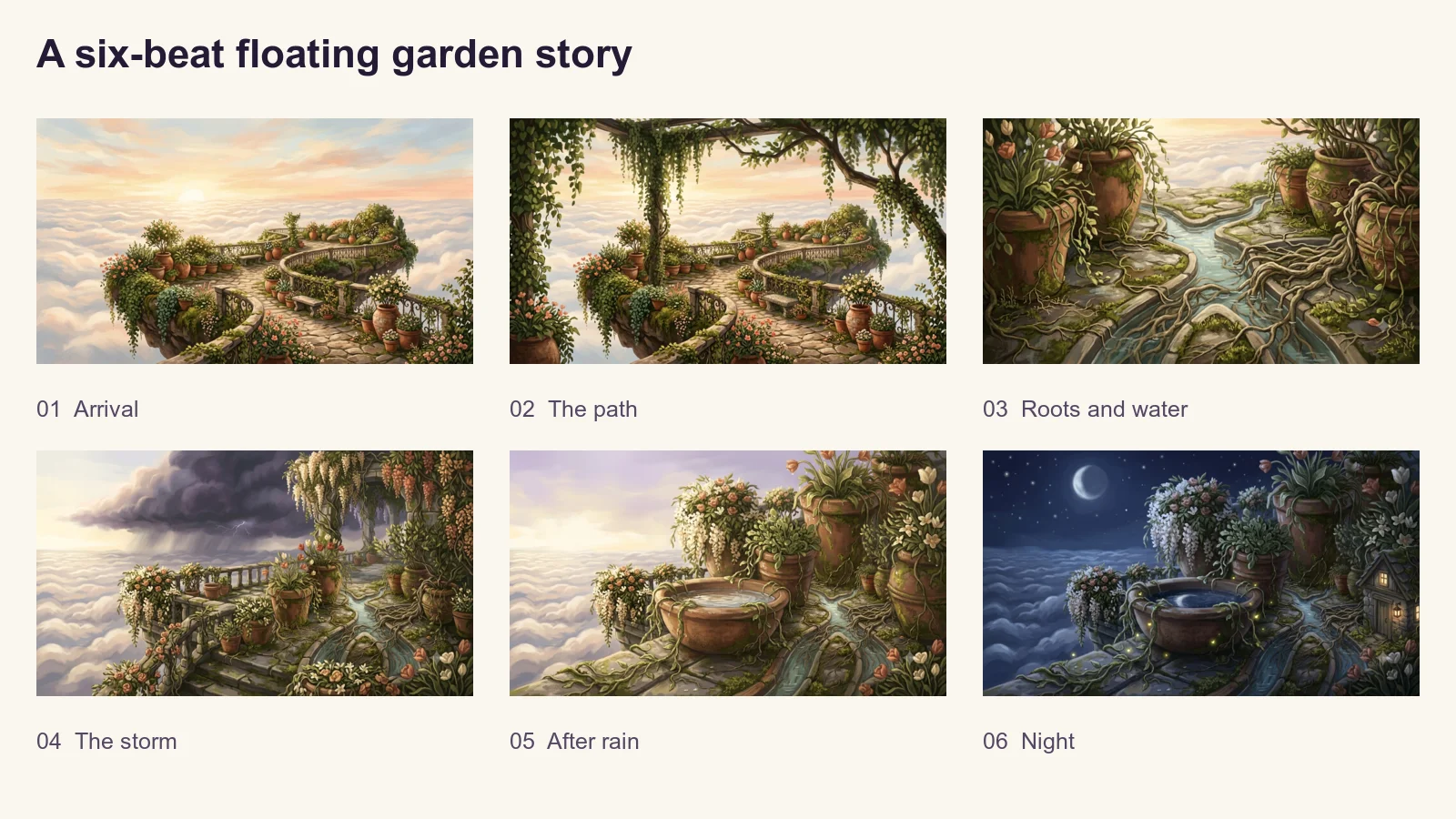
What you will end up with
- 75–120images for a 10-minute video
- 1art style throughout
- 16:9ready for your timeline
A folder of images, one for each beat of your script, all in one art style, at 16:9, and ready to drop onto your editing timeline in order.
How many you need depends on video length. A new image every 5 to 10 seconds of narration keeps a still-image video moving:
| Video length | Roughly how many images |
|---|---|
| 5 minutes | 40 to 60 |
| 10 minutes | 75 to 120 |
| 20 minutes | 150 to 240 |
At that volume, making images one chat message at a time eats your whole week. The method below works the same for 6 images or 200.
Before you start
- A finished script. Images come last. Changing the script after generating means regenerating.
- A ChatGPT or Gemini account that can make images. A paid plan helps for long videos, since free plans limit how many images you get per day.
- AutoGem, a free Chrome extension, for the bulk part in step 6.
- A video editor such as CapCut, DaVinci Resolve, or Premiere Pro.
1Split your script into beats
A beat is a stretch of narration that needs a new picture. Cut wherever the picture should change: a new place, a new object, a new idea, or a jump in time. Not every sentence needs its own image, and a beat can last several sentences.
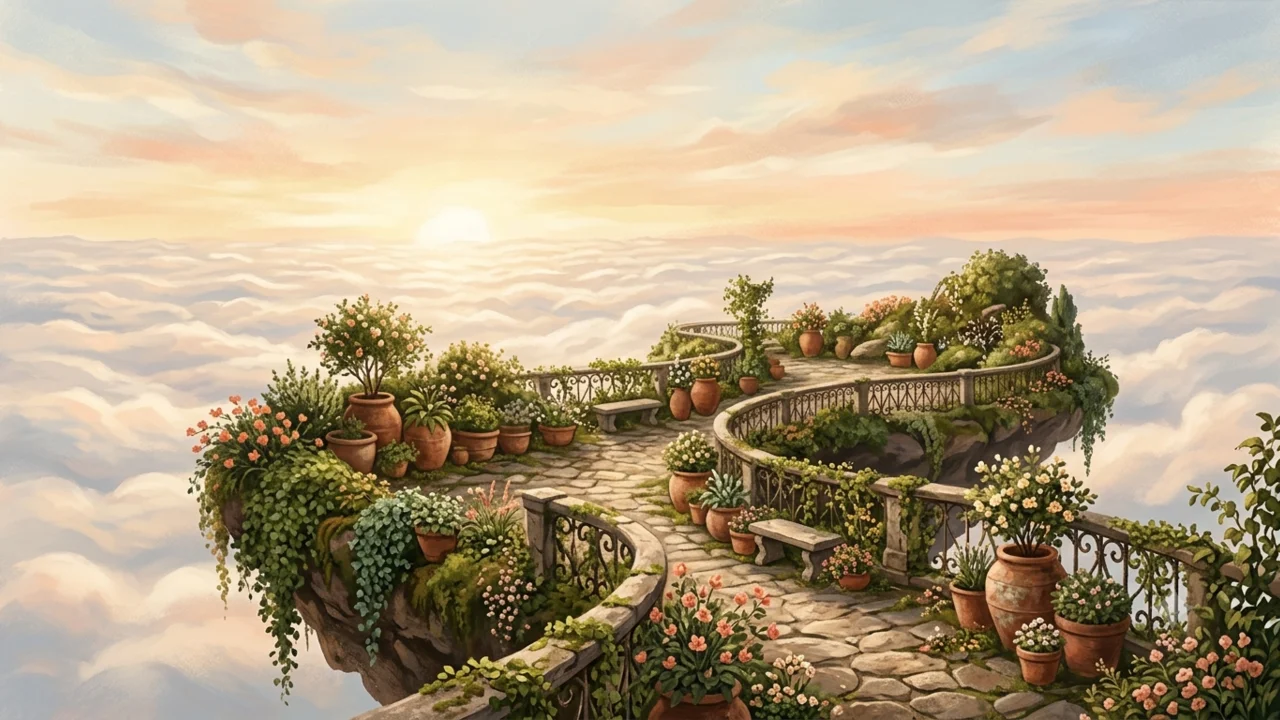
Here is a six-beat example, a short story about a garden floating above the clouds:
| Beat | Narration | What the viewer sees |
|---|---|---|
| 01 | Above the clouds, a garden wakes. | Wide view of the garden at dawn |
| 02 | A path leads between the plants. | Medium view down the terrace path |
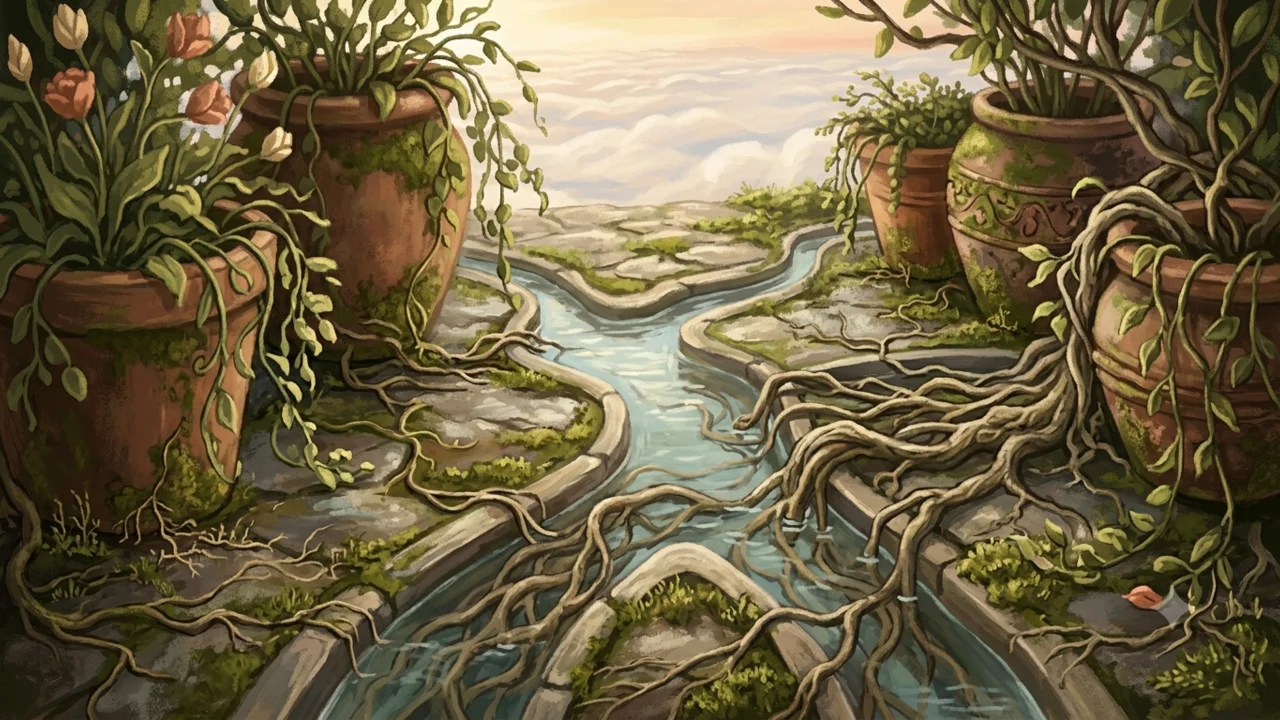
| 03 | Under the leaves, water finds its way. | Close-up of roots and water channels |
| 04 | Then the weather changes. | Wide view with rain approaching |
| 05 | The garden catches what it needs. | Close-up of rain filling a basin |
| 06 | By night, the garden is quiet again. | Wide view of the garden after dark |
Download the shot-list template (CSV). It has columns for the beat, narration, image idea, prompt number, and the file you pick, so you can track a long video in a spreadsheet.
2Lock one art style for the whole video
Images that switch style every few seconds make a video look thrown together. Write one style description and paste it, word for word, into every prompt.
- Template
- [illustration style], [3 palette colors], [texture], no people, no lettering or logos.
- Our example
- painterly editorial illustration, warm ivory, moss green, and muted coral palette, soft textured brushwork, no people, no lettering or logos.
Illustrated and painterly styles are more forgiving than photorealism. A slightly odd detail reads as artistic choice, not as a mistake. They also suit story and history channels, where you are showing things no camera recorded.
3Describe what the viewer sees, not what the narrator says
A model cannot draw “the garden learned to save water.” It can draw “rain collecting in a terracotta basin, with channels leading toward the plants.” For each beat, write the picture you would point a camera at.
Then mix your shot types. A video made only of wide landscapes gets dull fast, however good each one looks.
- Wide: sets the scene at the start of a section, or after a time jump.
- Medium: shows a place or object in context.
- Close-up: lands a specific detail the narration mentions.
Keep words out of the image. Add titles and captions in your editor, where you can spell them right and move them.
4Write one prompt per beat
Every prompt follows the same pattern. The shot and subject change; the style block never does.
- Pattern
- Create a [wide / medium / close-up] image of [what the viewer sees], [time of day or mood], [style block].
If you burn captions into the lower part of the frame, add “open sky in the upper third” or “empty space at the bottom” so nothing important gets covered.
Here are the six prompts for the garden story, in shot-list order.
- Create a wide establishing image of a fictional garden floating above the clouds at dawn, terracotta pots and trailing vines along a small stone terrace, warm ivory, moss green, and muted coral palette, painterly editorial illustration, soft textured brushwork, open sky in the upper third, no people, no lettering or logos.
- Create a medium view inside a fictional garden floating above the clouds, terracotta pots and trailing vines around a narrow stone path, morning light, warm ivory, moss green, and muted coral palette, painterly editorial illustration, soft textured brushwork, a clear path leading into the scene, no people, no lettering or logos.
- Create a close-up of roots and shallow water channels between terracotta pots in a fictional garden floating above the clouds, trailing vines, soft daylight, warm ivory, moss green, and muted coral palette, painterly editorial illustration, soft textured brushwork, clear simple composition, no people, no lettering or logos.
- Create a wide view of a fictional garden floating above the clouds as a dark rain cloud approaches, terracotta pots and trailing vines along a small stone terrace, warm ivory, moss green, and muted coral palette, painterly editorial illustration, soft textured brushwork, dramatic but gentle mood, no people, no lettering or logos.
- Create a detail image of rainwater collecting in a terracotta basin with shallow channels leading toward terracotta plant pots in a fictional garden floating above the clouds, trailing vines, soft light after rain, warm ivory, moss green, and muted coral palette, painterly editorial illustration, soft textured brushwork, no people, no lettering or logos.
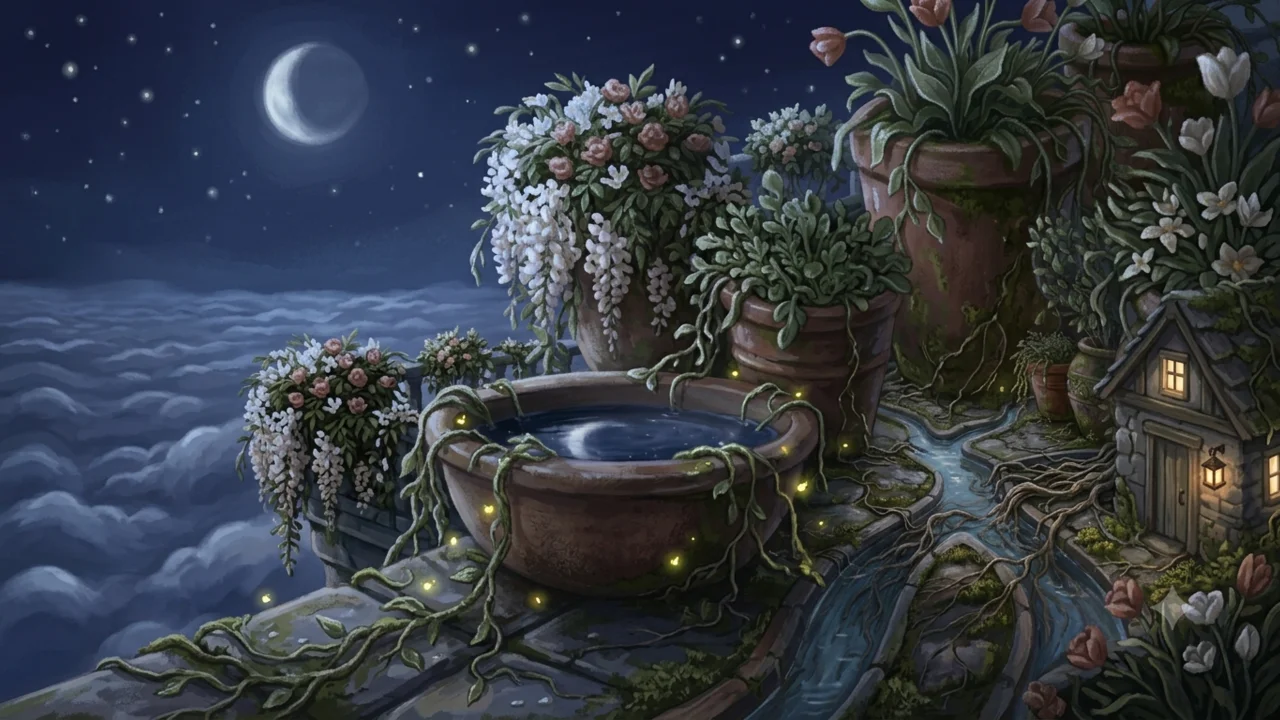
- Create a wide closing image of a fictional garden floating above the clouds at night, terracotta pots and trailing vines along a small stone terrace, warm windows in a small garden shed, warm ivory, moss green, and muted coral palette, painterly editorial illustration, soft textured brushwork, quiet atmosphere, open sky above, no people, no lettering or logos.
Highlighted words change from prompt to prompt. The rest stays the same.
This free set is also in the prompt library. Export it to AutoGem, or download the TXT file to use it yourself.
5Test a wide shot and a close-up by hand
Before you run the whole list, paste one wide prompt and one close-up into ChatGPT or Gemini. If the two look like they belong to the same video, your style block works. If they don’t, make the style more specific (name the medium, palette, and texture) and test again.
Ten minutes here saves you regenerating a hundred images later.
6Generate the whole shot list with AutoGem
By hand, every image means pasting a prompt, waiting, downloading, and renaming. For a 10-minute video, that is around a hundred rounds. AutoGem is a free Chrome extension that runs the loop for you, inside your own ChatGPT or Gemini tab.
- Install AutoGem and choose a download folder.
- Open ChatGPT or Gemini and sign in.
- In the AutoGem side panel, paste your prompts in shot-list order, set the aspect ratio to 16:9, and click Add to Queue.
- Start the queue and keep the side panel open. Images save to your folder as they finish.
- For a long video, queue one section of the script at a time, around 20 to 30 beats. You can review each section before starting the next.
Making Shorts? Run a separate 9:16 batch, and rewrite each prompt for a tall frame rather than reusing the 16:9 version.
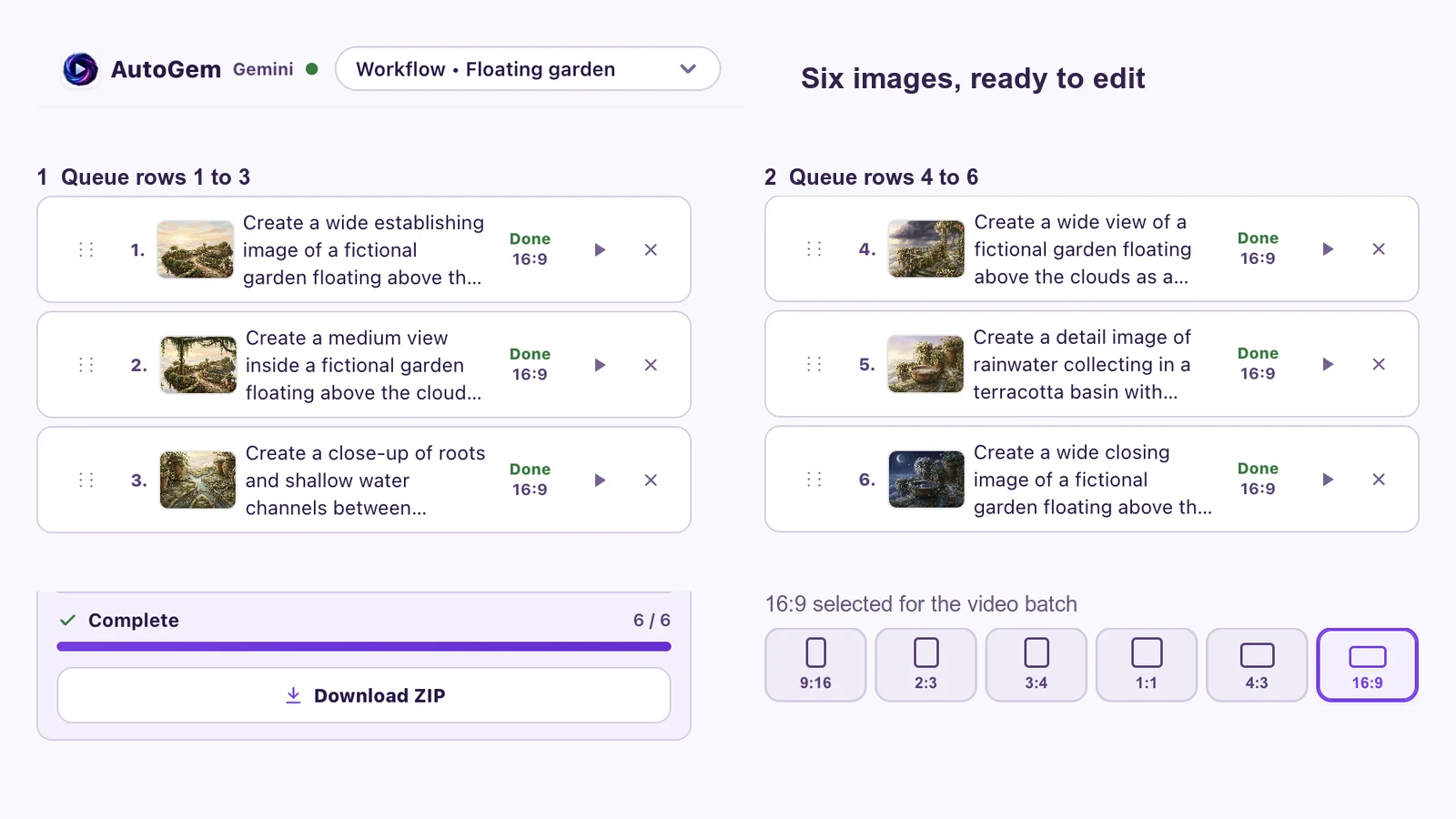
First time using AutoGem? The ChatGPT setup guide and Gemini setup guide cover installation and folder permissions in more detail.
7Review the set, then build the edit
Lay the images out in beat order and watch them as a viewer would, with the narration in your head.
- Does it match the line? Each image should make its beat easier to follow. Swap out pretty images that tell a different story.
- Is there variety? Look for runs of the same shot type and break them up.
- Does the style hold? Palette, lighting, and rendering stay the same. Time of day can change; the world shouldn’t.
- Is it accurate? For history and explainer videos, check every object against your research. AI invents details: wrong uniforms, wrong buildings, wrong centuries.
Then rename each keeper with its beat number (01, 02, 03) so the files sort in order, and drop them on your timeline. A slow zoom or pan on each image makes a still-image video feel far less static.
Common questions
How many images do I need for a YouTube video?
Plan on a new image every 5 to 10 seconds of narration. That is roughly 40 to 60 for a 5-minute video and 75 to 120 for 10 minutes. Slower, calmer channels can hold each image longer.
Can I monetize a channel that uses AI images?
AI images alone do not rule it out, but YouTube’s monetization rules reward original work, so your script and narration need to carry the video. YouTube also asks creators to disclose realistic synthetic content. Clearly illustrated styles like the one in this guide are less likely to need a label. Check YouTube’s current policies for your channel.
ChatGPT or Gemini: which is better for video images?
Both can hold an illustration style across a set. Run your two test prompts in each and keep whichever matches your channel’s look more often. AutoGem runs batches on either one.
Can AutoGem make the video for me?
No. AutoGem makes the still images. You add them to your timeline, with narration, music, captions, and motion, in your video editor.
Do I need an API key?
No. AutoGem works through the ChatGPT or Gemini website you already use. Your plan sets how many images you can make per day, so a long video may take more than one session on a free plan.
More guides
Make the images for your next video
Install AutoGem, paste your shot-list prompts, and let it run. Every image saves to your folder, ready for the timeline.
 Download for
Google Chrome
Download for
Google Chrome